

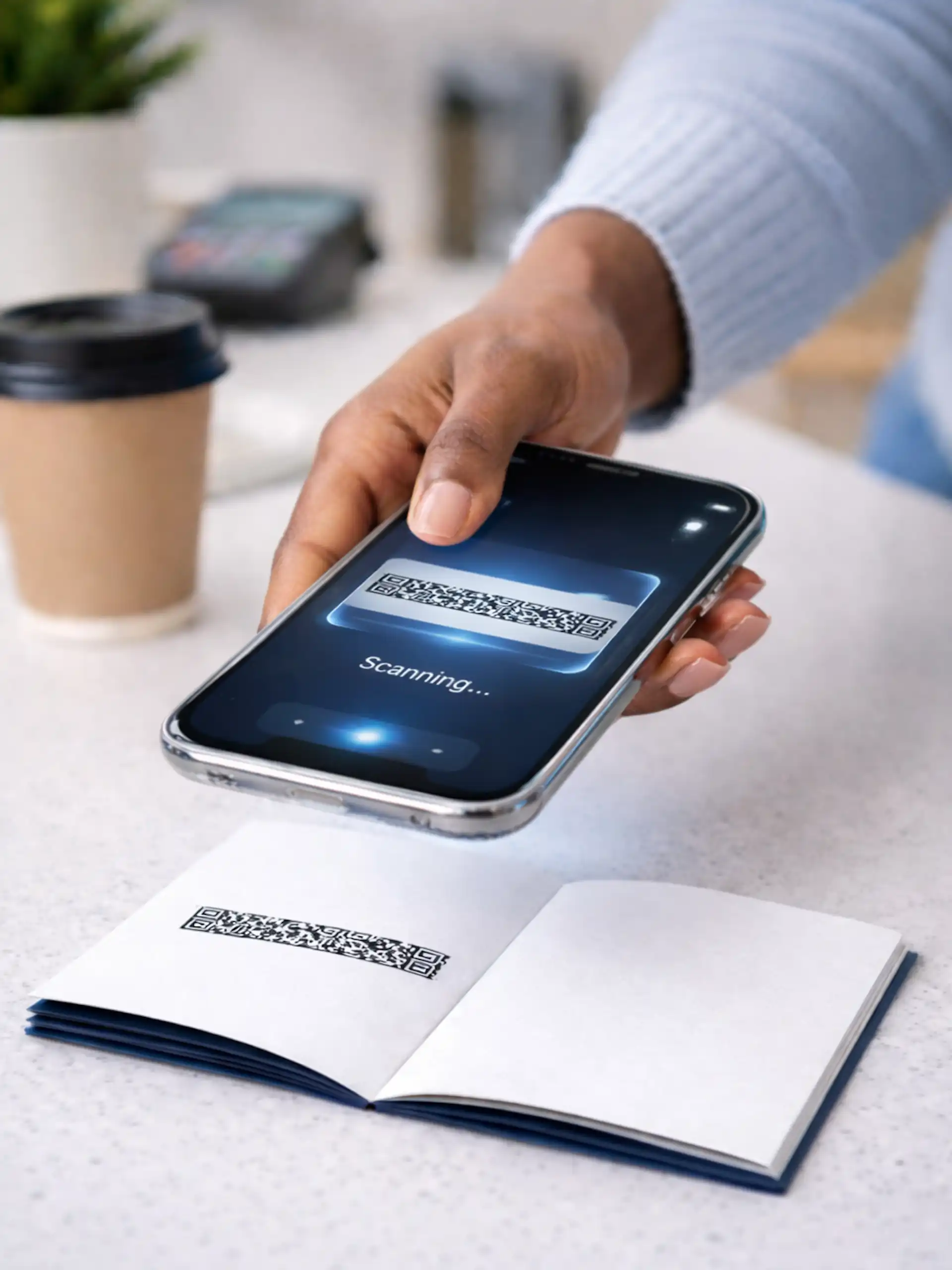
Travel keeps evolving, and now even your ID is getting a modern upgrade. Apple has introduced a new way to carry part of your identity right on your phone, offering a little extra convenience as you move through airports — and raising plenty of questions about what this could mean for the future of travel. It’s not a replacement for your passport, but it’s definitely a development worth watching.
Table of Contents
- What This New Feature Really Is
- What It Cannot Do—Yet
- Who Can Use It
- How to Set It Up on Your iPhone
- Tips
- How to Use It at TSA
- Final Thoughts
- Like it. Pin it.

What This New Feature Really Is
Apple has introduced a new Digital ID option inside Apple Wallet, and it’s built to work with your existing U.S. passport. During setup, your iPhone actually reads the chip embedded in your passport — the same chip used at airports — to confirm the document is authentic. Even though it’s created from your passport, Apple is very deliberate in calling it a Digital ID, not a digital passport.
Right now, this feature is aimed squarely at domestic airport screening. At select TSA checkpoints, you can use your Digital ID in place of handing over a physical ID. Instead of passing your passport or driver’s license to an officer, you simply use your iPhone at an identity reader and follow their prompts. Both Apple and TSA frame it as an optional convenience that’s only available at supported locations, not a universal replacement.
What It Cannot Do— Yet
Digital ID in Apple Wallet is convenient, but it has limits you absolutely need to know. You’ll still need your physical passport for any kind of international travel. That includes clearing border control, going through immigration, and entering another country — none of that can be done with a digital ID at this point. Apple has been very clear that Digital ID is not a replacement for your passport. Think of it as a helpful add‑on for certain TSA checkpoints, not a substitute for official travel documents.
Who Can Use It
To use Digital ID, you’ll need a valid U.S. passport and the right Apple device. Apple currently supports iPhone 11 or newer running iOS 26.1 or later, and certain Apple Watch models also work if they’re updated to the required watchOS version.
You’ll also need to go through a TSA checkpoint that supports Digital ID. Not every airport has the equipment yet, and even within the same airport, some lanes have the reader while others don’t. TSA says availability still depends on the location and the technology set up in each checkpoint.

How to Set It Up on Your iPhone
Open your Apple Wallet and tap the add button. Choose Driver’s License and ID Card, then select Digital ID. Your iPhone will walk you through scanning the photo page of your passport and then reading the passport’s chip. Just follow the on‑screen prompts, complete the identity verification steps, and you’re all set.
Tips:
- Hold your passport up to scan the last page of your passport. It will not work if you lie your phone on top of your passport.
- Be prepared to follow simple instructions like open your mouth, close your eyes, and turn your head to the left until your phone beeps/ vibrates.
- Once you register, it will say verification in progress until it gets approved.
How to Use It at TSA
Supported TSA checkpoints accept Digital ID and verify identity directly through the traveler’s device. TSA officers guide the process at the identity reader and keep the line moving. Physical passports remain required for all international travel, so they should stay within easy reach on travel days. Digital ID enhances convenience at certain checkpoints, but it does not replace a passport.
Update**
Why Libraries Stopped Processing Passports
Nonprofit public libraries across the country were instructed to stop processing passport applications on Friday, February 13, 2026, after the U.S. State Department issued cease‑and‑desist orders beginning in late fall. The agency said the order was based on federal laws that prohibit non‑governmental organizations from collecting and retaining passport application fees. This change affects an estimated 1,400 mostly nonprofit public libraries nationwide, roughly 15 percent of all public libraries. [apnews.com], [usnews.com]
Final Thoughts
Using Digital ID in Apple Wallet can make getting through airport security a little smoother at the locations that support it. Just keep in mind — it’s only for domestic screening. You’ll still need your physical passport when traveling internationally.
Like it. Pin it.


I love sharing stories, lessons from abroad, and tips for curious travelers. If my work has inspired you or made you smile, please buy me a coffee. Your support helps me keep the blog running—at no cost to you.
My articles are available as mobile apps for offline reading and GPS-assisted directions.
Download my articles on GPSMyCity.
This post contains sponsored and/or affiliate links, and I may earn a small commission.
Discover more from Duffel Bag Spouse Travels
Subscribe to get the latest posts sent to your email.